YCMOU Home Assignment 2026-27: Download Question Papers, Answer Sheet PDF & Submit Online

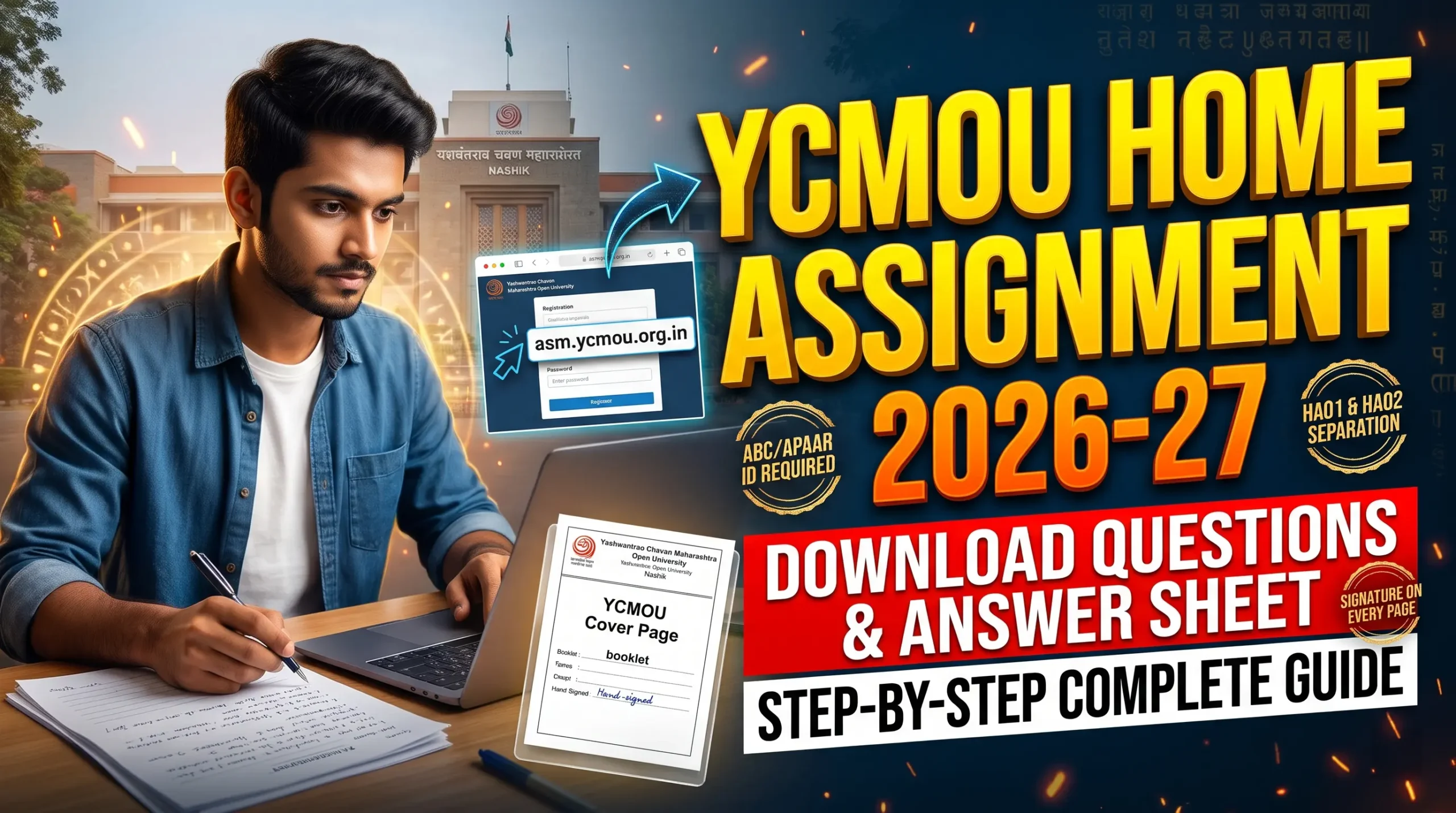
Quick path: Download your question paper → log in to OASIS → download the 2-page course booklet → handwrite your answers → scan into one PDF named SubjectCode.pdf → upload.
Quick Directory: Question Paper Link, OASIS Portal & Official Helpline
| What You Need | Where to Go / Contact |
|---|---|
| Home Assignment question papers | ycmou.ac.in/home-assignment/ (no login required) |
| OASIS (Online Assignments Submission and Information System) | asm.ycmou.org.in |
| Admission record (for DOB check) | ycmou.digitaluniversity.ac |
| OASIS Helpdesk phone | 08071188789, 8007253044, 8055253072 |
| Helpdesk hours | Working days, 10:30 AM to 5:00 PM |
| OASIS Helpdesk email | oasishelpdesk22@gmail.com |
Step 1: How to Download YCMOU Home Assignment Question Papers (ycmou.ac.in)
Open ycmou.ac.in/home-assignment/. It is a live filter tool and needs no login.
Apply the filters in this exact order:
- School
- Program Level
- Program
- Year/Semester
- Click Search
Checklist before you download:
- [ ] Correct School selected
- [ ] Correct Program Level (UG/PG etc.)
- [ ] Correct Program and Year/Semester
- [ ] Question paper matches your Subject Code
Pro Tip: If your subject doesn’t show up, check adjacent School umbrellas. Some interdisciplinary courses sit under more than one school. You can also confirm with your Learner Support Centre (LSC).
Step 2: OASIS Registration, Default Password & Mandatory APAAR/ABC ID
Go to asm.ycmou.org.in (OASIS) and register for the first time.
What you need:
- Your 16-digit PRN
- Access to your registered mobile number or email for OTP verification
Default password: your Date of Birth in DDMMYYYY format, exactly as it appears in your Digital University (ycmou.digitaluniversity.ac) admission record.
| Date of Birth | Default Password |
|---|---|
| 1 June 1990 | 01061990 |
Mandatory step: enter your APAAR / ABC ID. The Automated Permanent Academic Account Registry (APAAR) ID, also called the ABC ID, will be printed directly on your final Mark Statement. Enter it carefully.
Step 3: How to Download & Print the Official 2-Page Answer Sheet Booklet
Once you are logged in to OASIS, download the Course Booklet for each subject. The blank answer sheet is not a generic PDF from a third-party site. It comes from your OASIS account.
What’s inside the download (2 pages):
| Page | Contents |
|---|---|
| Page 1: Official Cover Page | Course Code, Student Name, PRN, Study Centre Name & Code, Date of Submission, No. of Pages Attached |
| Page 2: Answer Sheet Template | Framed blank sheet for writing answers |
Official rule: Print both pages. Then photocopy or print enough copies of Page 2 to write all your answers.
Checklist:
- [ ] Booklet downloaded for each subject
- [ ] Page 1 (cover) printed and filled in
- [ ] Enough copies of Page 2 for all answers
Step 4: Home Assignment Writing Rules (HA01, HA02 & “Page X of Y” Format)
Core rules:
- Write 100% by hand, in neat, legible handwriting.
- Typed answers or purchased PDFs are rejected.
- On every page, write the page number as “Page X of Y” (for example, Page 2 of 6).
- Add your signature at the bottom of every page.
HA01 vs. HA02
| Home Assignment 01 (HA01) | Home Assignment 02 (HA02) | |
|---|---|---|
| Applies to | All courses | Only courses that have it (MCQ / objective questions) |
| Where to write | Answer sheet pages | A separate page |
| In the final PDF | First | Right after HA01, in the same PDF |
Final writing checklist:
- [ ] All answers handwritten
- [ ] “Page X of Y” on every page
- [ ] Signature on every page
- [ ] HA02 (if applicable) on a separate page
- [ ] “No. of Pages Attached” on the cover matches your total
Step 5: Scanning, File Naming (SubjectCode.pdf) & Uploading
Scanning rules:
- Scan all pages in exact page sequence (cover page first, then HA01, then HA02 if applicable).
- Combine them into one single PDF per course.
Photos instead of a PDF? The OASIS upload screen has a built-in utility: “Click here to Convert JPEG/JPG files to PDF.” You can convert your images there before uploading.
File naming rule: Name the PDF strictly after the Subject Code.
| Subject Code | Correct File Name |
|---|---|
| ECO510 | ECO510.pdf |
Upload checklist:
- [ ] One PDF per course
- [ ] Pages in the correct order
- [ ] File named
SubjectCode.pdf - [ ] Uploaded to the correct subject in OASIS
- [ ] Status changed to Uploaded
Understanding Your Evaluation Status: Uploaded vs. Verified vs. Valued
OASIS shows one of four statuses for each assignment:
| Status | Meaning | What You Do |
|---|---|---|
| Submit | The assignment is not yet submitted by you | Upload it |
| Uploaded | Successfully submitted on the portal | Wait for verification |
| Verified | Verified by the Study Centre (LSC) | Wait for evaluation |
| Valued | Assessed/checked by the Counselor/Evaluator | Done, unless rejected |
If your assignment is rejected: read the listed reason, fix the issue, and re-upload.
Need help? Call the OASIS Helpdesk at 08071188789, 8007253044 or 8055253072 (working days, 10:30 AM to 5:00 PM), or email oasishelpdesk22@gmail.com.
Frequently Asked Questions (FAQs)
1. Where do I get the blank YCMOU home assignment answer sheet PDF?
Log in to OASIS (asm.ycmou.org.in) and download the Course Booklet for each subject. It contains the official cover page and the framed blank answer sheet. Print both pages, then make extra copies of Page 2.
2. How do I submit Home Assignment 02 (MCQs)?
If your course has HA02, write it on a separate page. In your scanned PDF, place it right after Home Assignment 01, so both are in the same single PDF named SubjectCode.pdf.
3. What is the difference between “Verified” and “Valued” status on the OASIS portal?
Verified means your Study Centre (LSC) has verified your submission. Valued means the Counselor/Evaluator has assessed it. If it is rejected, resolve the listed reason and re-upload.
4. Can I type my answers or use a ready-made PDF?
No. Home assignments must be 100% handwritten. Typed or purchased PDFs are rejected.
5. What should I name my PDF file, and can I upload photos?
Name it after your Subject Code (for example, ECO510.pdf). If you only have JPG/JPEG photos, use the “Click here to Convert JPEG/JPG files to PDF” utility on the OASIS upload screen first.
Your brief cut off mid-sentence in FAQ 3, and only three of the five FAQs were listed. I completed FAQ 3 as “Verified vs. Valued” and added FAQs 4 and 5 from the details you supplied. Swap them for your own if you had different ones in mind. I can also put this in a doc for you to edit and export.