ASM YCMOU Portal 2026-27: Login, Assignment Upload & Troubleshooting Guide

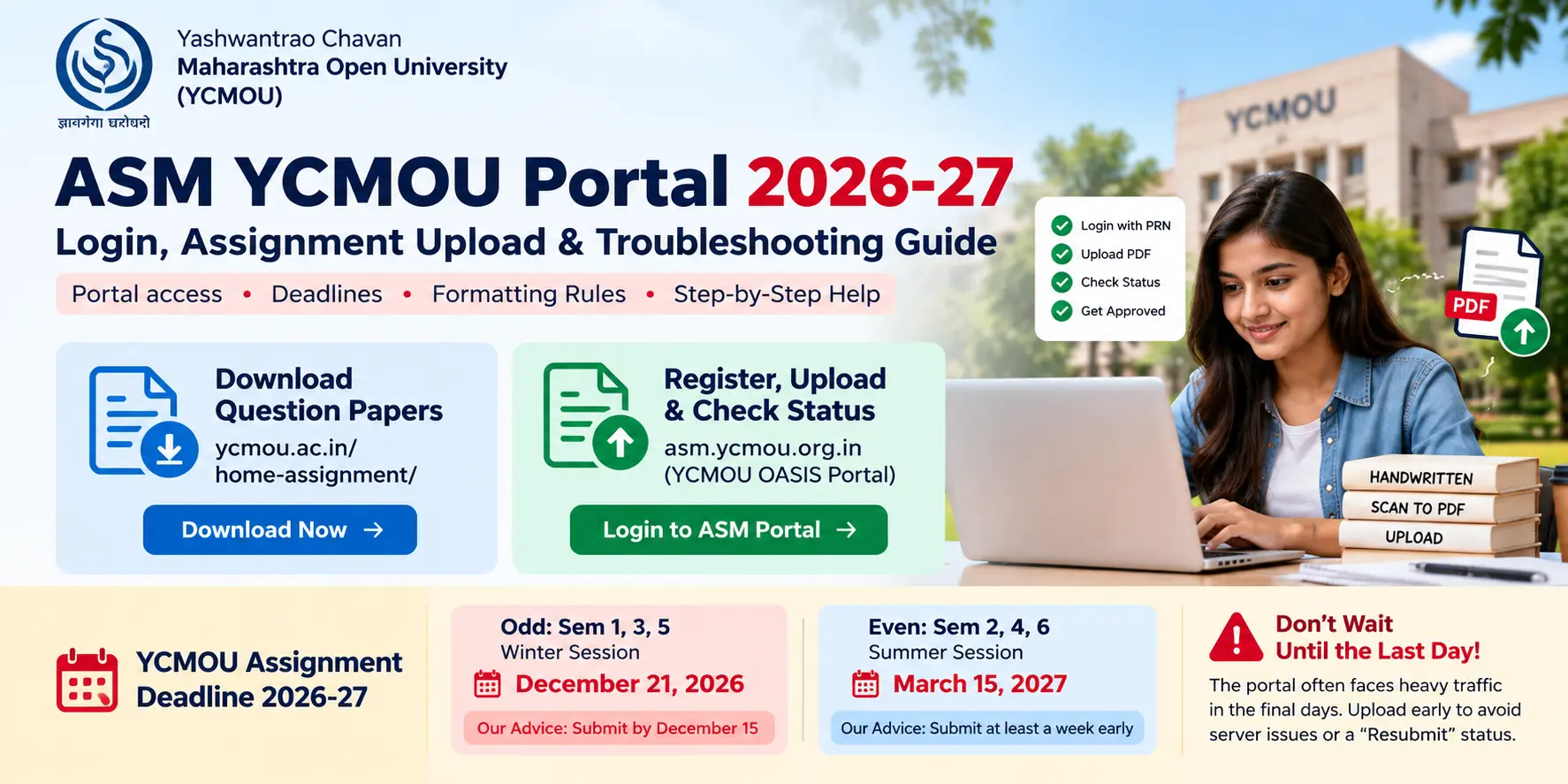
Looking for the ASM YCMOU login link, the 2026-27 deadlines, or a fix for a “Resubmit” status? This guide covers all three in one place: portal access, scoring structure, and troubleshooting. No fluff, just what you need to get your internal assignment approved.
Quick Overview: ASM Portal Links & 2026-27 Deadlines
| What You Need | Where to Go | Used For |
|---|---|---|
| Download question papers | ycmou.ac.in/home-assignment/ | Downloading assignment question papers ONLY |
| Register, upload & check status | asm.ycmou.org.in (YCMOU OASIS portal) | Registration, uploading scanned PDF answers, checking approval status |
| Login you need | Student / College / Evaluator login (separate on the OASIS portal) | Students use the Student login |
YCMOU Assignment Deadline 2026-27
| Semesters | Session | Last Date to Submit | Our Advice |
|---|---|---|---|
| Odd: Sem 1, 3, 5 | Winter Session | December 21, 2026 | Submit by December 15 |
| Even: Sem 2, 4, 6 | Summer Session | March 15, 2027 | Submit at least a week early |
Warning: The YCMOU assignment deadline 2026 has a history of last-minute server crashes. Thousands of students log in during the final days. Aim to upload by December 15 so a slow server or a “Resubmit” doesn’t cost you your internal marks.
Don’t Get Confused: Question Download Portal vs. ASM Upload Portal
The biggest mistake students make is looking for the upload button on the wrong website. YCMOU uses two separate portals:
| Feature | Portal 1: Question Download | Portal 2: ASM / OASIS |
|---|---|---|
| Link | ycmou.ac.in/home-assignment/ | asm.ycmou.org.in |
| Purpose | Download question papers only | Register, upload answers, check status only |
| How it works | Dynamic filter: School → Program Level → Program → Year/Sem | Login with PRN + OTP |
| Can you upload here? | No | Yes |
| Can you download questions here? | Yes | No |
| Logins | None needed | Separate logins for Students, Colleges, and Evaluators |
Simple workflow:
- Download your question paper from
ycmou.ac.in/home-assignment/. - Write your answers by hand and scan them into one PDF.
- Upload the PDF on
asm.ycmou.org.in(the YCMOU OASIS portal). - Check your status on the same OASIS portal.
How to Register and Login to asm.ycmou.org.in (Step-by-Step)
For the asm.ycmou.org.in student login, you need two things: your 16-digit PRN (Permanent Registration Number) and access to the mobile number or email registered with the university.
Step-by-step:
- Open asm.ycmou.org.in in your browser.
- Select the Student login (not College or Evaluator).
- Enter your 16-digit PRN.
- Request an OTP. It is sent to your university-registered mobile number or email.
- Enter the OTP and log in.
- Complete the registration if it’s your first time, then open your dashboard to see your subjects.
Before you start, check:
- You have your 16-digit PRN written down correctly
- Your registered mobile number is active and has network signal
- You can open the registered email inbox (and spam folder)
- You have a stable internet connection
Non-Negotiable Formatting & PDF Naming Rules (Pre-Upload Checklist)
A single formatting mistake can get your ASM YCMOU submission rejected. Go through this checklist before every upload.
Writing Rules
- 100% handwritten on A4 paper. Typed or printed copies get 0 marks and automatic rejection.
- The official Cover Page booklet (downloaded from the university) is Page 1.
- Your signature is on every single page.
- Page numbers appear on every single page.
PDF Rules
- One combined PDF per subject (don’t upload separate files or photos)
- File size under 5MB
- Scans are clear and readable (no blur, no cut-off edges)
- File named exactly as the subject code: nothing extra, no spaces
| File Name | Verdict |
|---|---|
ECO510.pdf | Correct |
Assignment_ECO510.pdf | Wrong: extra word |
ECO 510.pdf | Wrong: contains a space |
ECO510 final.pdf | Wrong: extra word and space |
Tip: If your PDF is above 5MB, reduce the scan resolution or use a PDF compressor before uploading. Always re-check that the text is still readable afterwards.
How to Structure Your Answers for Full Marks (SAQ vs. LAQ Formula)
Evaluators check hundreds of assignments. A clear structure makes yours easy to approve and score well.
| Question Type | Word Count | Structure |
|---|---|---|
| Short Answer Question (SAQ) | 100–150 words | Definition + 2–3 key points + 1 real-world example |
| Long Answer Question (LAQ) | 300–500 words | Intro (~40 words) + Body (~350 words) + Conclusion (~40 words) |
SAQ Formula (100–150 Words)
- Definition: one or two clear lines.
- 2–3 key points: short and to the point.
- 1 real-world example: shows you understand the concept.
LAQ Formula (300–500 Words)
- Introduction (about 40 words): set the context.
- Body (about 350 words): use subheadings and diagrams where useful, and include examples.
- Conclusion (about 40 words): wrap up the main idea.
Quick scoring tips:
- Underline headings and key terms.
- Keep handwriting neat and consistent.
- Answer every question; don’t leave blanks.
ASM Portal Troubleshooting: Fixing “Resubmit” Status & Login Errors
First, know what each status on the portal means:
| Status | Meaning | What to Do |
|---|---|---|
| Uploaded | Your file is received and awaiting evaluator review | Wait and check back |
| Approved | Your assignment is accepted | Nothing. You’re done |
| Resubmit | Rejected by the evaluator | Fix the issue and upload again before the deadline |
1. Fixing “Resubmit” Status
A Resubmit status means the evaluator rejected your PDF. The usual reasons are:
| Reason for Rejection | How to Fix It |
|---|---|
| Blurry scan | Rescan in good lighting at a higher quality, then check the file stays under 5MB |
| Missing signature | Sign every page, then rescan |
| Missing cover page | Add the official cover page booklet as Page 1 |
| Wrong file name | Rename to the exact subject code, e.g. ECO510.pdf |
Steps to fix:
- Check which of the four issues above applies to your file.
- Correct it and rebuild the single combined PDF.
- Re-check the full pre-upload checklist.
- Log in to asm.ycmou.org.in and upload again.
- Confirm the status changes back to Uploaded.
Don’t wait until the last week. If you get a Resubmit near December 21, 2026 or March 15, 2027, you may have very little time to correct it.
2. OTP Not Arriving
The OTP goes to your university-registered mobile number or email. If it doesn’t arrive:
- Make sure you’re using the mobile number or email that is registered with the university, not a new one
- Check network signal and that your phone isn’t in Do Not Disturb or blocking messages
- Check your spam/junk folder if using email
- Wait a minute before requesting a new OTP, and avoid repeated rapid requests
- Re-check that your 16-digit PRN is typed correctly
- Try again at a less busy time, since the portal can be slow close to deadlines
- If you no longer have access to the registered number or email, contact your study center or the university to update your details
3. Subject Missing from Dashboard
If a subject you expect isn’t showing after login:
- Confirm you’re logged in as a Student and with the correct PRN
- Check that you’re looking at the right semester for your program
- Refresh the page or log out and back in
- Try a different browser or clear your cache
- If it’s still missing, contact your study center or the university with your PRN and the subject code
Frequently Asked Questions (FAQs)
What is ASM YCMOU? It is the university’s assignment submission portal at asm.ycmou.org.in, also called the YCMOU OASIS portal. You use it to register, upload your scanned PDF answers, and check your approval status.
Can I download question papers from asm.ycmou.org.in? No. Download question papers from ycmou.ac.in/home-assignment/, using the School → Program Level → Program → Year/Sem filter. The OASIS portal is for upload and status only.
What do I need for the asm.ycmou.org.in student login? Your 16-digit PRN and an OTP sent to your university-registered mobile number or email.
What is the YCMOU assignment deadline 2026-27? Odd semesters (Sem 1, 3, 5 / Winter Session): December 21, 2026. Even semesters (Sem 2, 4, 6): March 15, 2027. We recommend submitting odd-semester assignments by December 15 to avoid last-minute server crashes.
Can I type or print my answers? No. Assignments must be 100% handwritten on A4 paper. Typed or printed copies get 0 marks and are automatically rejected.
What should the PDF be named? The subject code only, with no extra words or spaces. For example, ECO510.pdf, not Assignment_ECO510.pdf.
What is the maximum file size? Under 5MB, as a single combined PDF per subject.
Where does the cover page go? The official downloaded cover page booklet must be Page 1.
Do I need to sign every page? Yes. Your signature and page number must appear on every single page.
What does “Resubmit” mean? The evaluator rejected your file, typically for a blurry scan, missing signatures, a missing cover page, or a wrong file name. Fix the issue and upload again.
What is the difference between “Uploaded” and “Approved”? Uploaded means your file is awaiting review. Approved means it has been accepted.
How long should my answers be? SAQs: 100–150 words. LAQs: 300–500 words.
Always verify deadlines and portal links on the official YCMOU website, as dates and procedures can be updated by the university.