YCMOU Assignment 2026-27: Complete Guide to Download, Write, Format & Submit (ASM Portal)

SERP & Source Research Summary
A note on method: I pulled live web search and fetched pages directly (including the official YCMOU home assignment page and OASIS portal login pages) rather than relying on memory. Live search doesn’t give me rankings, traffic, or backlink data — so I’m reporting only what I could verify, and flagging anything unverifiable.
Official sources confirmed:
- ycmou.ac.in/home-assignment/ — a dynamic filter tool (School → Program Level → Program → Year/Sem → Search) that lists downloadable assignment PDFs. No static list of subject codes; students must filter live.
- asm.ycmou.org.in (OASIS) — separate student/college/evaluator/admin login portals. One verified official student user-manual excerpt (via Scribd mirror) shows status labels as “Submit” (not yet submitted), “Uploaded” (successfully submitted), “Rejected” (sent back by study centre/councillor) — not “Approved/Resubmit” wording some sites use. I’ve used the verified terms.
- Official manual confirms PRN + password login, OTP-based password reset tied to date of birth, and APAAR/ABC ID requirement.
Third-party competitor pages reviewed: ycmouassignment.com’s “Complete Guide 2026-27” is thorough — covers marks weightage (30/100 split), SAQ/LAQ word-count strategy, 20 common mistakes, and program-specific tips. Several of its specifics (exact word limits, 5MB file cap, December 21/March 15 deadlines) are not confirmed on official YCMOU pages — I’m treating these as commonly reported but unverified, and I’ve worded the article to direct students to check live circulars rather than stating fixed dates as fact.
Gap identified: No reviewed page clearly separates “what you must do” from “what commonly goes wrong,” combines it with a scannable status-tracking explainer, and avoids presenting unverified deadlines as fixed — that’s the gap this article fills.
What is a YCMOU Home Assignment?
A home assignment is compulsory internal coursework YCMOU students complete and submit per subject, alongside the Self Learning Material (SLM) for that course.
- It’s assigned per subject code, not per course overall
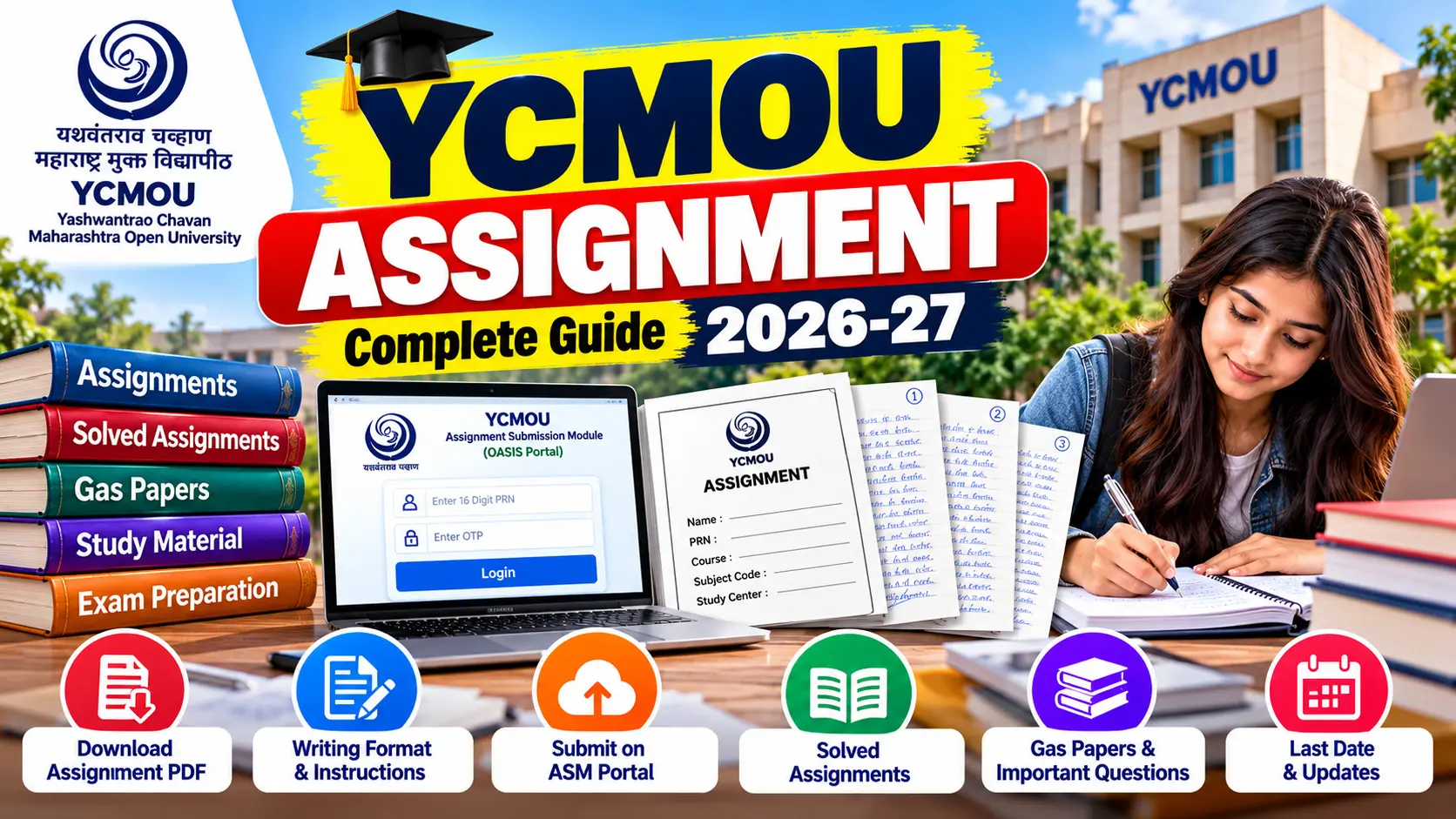
- It’s handwritten, scanned, and submitted online through the ASM (OASIS) portal
- It typically contributes to your internal/continuous assessment marks — always confirm the exact weightage for your specific subject on your official assignment paper, since it can vary by course
Important distinction students often miss:
- ycmou.ac.in/home-assignment/ → where you download the official question paper (the actual assignment questions)
- asm.ycmou.org.in → where you upload your handwritten, scanned answers
Two different portals, two different purposes. Keep both bookmarked.
How to Download Your YCMOU Assignment PDF (Official Method)
Step 1: Visit the Official Home Assignment Page
Go to ycmou.ac.in/home-assignment/. This is the university’s live assignment repository — not a static PDF library, but a filterable search tool.
Step 2: Filter by School, Program, and Semester
On the page, select:
- School (e.g., School of Commerce & Management, School of Humanities & Social Sciences)
- Program Level (Certificate, Diploma, Under Graduate, Post Graduate)
- Program (your specific course, e.g., BA, BCom, MBA)
- Year/Sem (your current semester)
Click Search.
Step 3: Locate Your Subject and Download
A results table will list the programs and titles matching your filters, with a Download action against each row. Find your exact subject code and download the question paper PDF.
If nothing appears:
- Double-check you’ve selected the correct school for your program — some courses sit under more than one school umbrella
- Confirm your semester is correctly selected
- If a subject genuinely isn’t listed, contact your study centre — don’t assume no assignment means no submission requirement
Rules for Writing Your YCMOU Assignment
Formatting mistakes are one of the most common reasons assignments get sent back. Follow these core rules:
- Handwritten only. Typed or printed assignments are not accepted on this portal.
- A4 size paper.
- Legible handwriting — if an evaluator can’t read it, it can’t be marked fairly.
- Signature on every page.
- Page number on every page.
- First page = the official downloaded cover page/booklet. Don’t create your own cover page — use the one generated from the portal for that course.
Before you scan anything, run through this checklist:
- ✅ Written by hand, not typed
- ✅ A4 pages
- ✅ Cover page booklet as page one
- ✅ Signature on every page
- ✅ Page number on every page
- ✅ Answers match the actual questions on your downloaded paper
On word limits and marks split: Several third-party guides circulate fixed word-count formulas (e.g., 100–150 words for short answers, 300–500 for long answers) and specific marks breakdowns. These aren’t confirmed on YCMOU’s official assignment pages and can vary by subject and revision cycle — always follow the instructions printed on your specific downloaded question paper rather than a generic number from a blog.
How to Scan and Upload Correctly (Avoiding Rejection)
Scanning
- Scan every page of one subject into a single PDF — don’t upload separate files per page
- Use a proper scanner app (not a shaky phone photo) so the file is clear and evenly lit
- Check that every page is included and readable before uploading — a missing or blurry page is a common rejection reason
Uploading on asm.ycmou.org.in
- Go to asm.ycmou.org.in and log in to the Student Login
- Navigate to the home assignment upload section for your course
- Select the correct subject
- Upload your single, complete PDF for that subject
- Confirm the submission
Double-check before confirming: that the PDF you’re uploading actually corresponds to the subject you’ve selected in the dropdown. A mismatched file is a frequent, entirely avoidable error.
Registering and Logging In to the ASM Portal
If this is your first time on the portal:
- Visit asm.ycmou.org.in
- Choose Student Login
- Log in using your PRN number
- Your default password is your date of birth, in the format registered at the time of your admission on the Digital University portal
- On first login, you’ll be asked to validate via OTP and then set a new password — note this down, as you’ll use it going forward, not your date of birth again
- You may also be asked to confirm your APAAR/ABC ID (Automated Permanent Academic Account Registry), which prints on your final mark statement — create one if you don’t already have it
Checking Your Assignment Status
After uploading, don’t assume you’re done — check back on the portal regularly. Per YCMOU’s own student manual, your submission will show one of these statuses against each subject:
| Status | What It Means |
|---|---|
| Submit | Assignment has not yet been submitted for this subject |
| Uploaded | Assignment has been successfully submitted |
| Rejected | The study centre or evaluator has rejected it — usually due to formatting, scan quality, or an incomplete submission |
If your status shows “Rejected”: Re-check the exact reason shown on the portal, fix the issue (commonly a scan quality or formatting problem), and re-upload as soon as possible rather than waiting.
Common ASM Portal Problems & Fixes
| Problem | Likely Cause | Fix |
|---|---|---|
| Can’t log in | Entered date of birth in wrong format, or already reset password and forgot it | Re-check format; use “forgot password” / OTP reset if available |
| OTP not received | Mobile/email not updated with university records | Check your registered contact details via your eSuvidha/Digital University login; contact your study centre to update |
| Status shows “Rejected” | Poor scan quality, missing cover page, missing signature/page numbers | Fix the specific issue, rescan clearly, re-upload |
| Subject not listed on upload page | Wrong school/program filter, or registration issue for that subject | Confirm your registered subjects with your study centre |
| Upload won’t go through | Weak internet connection, large/unstable file, or portal traffic near deadline | Use a stable connection, retry, avoid uploading on the last day |
Where to Find YCMOU Solved Assignments, Notes & Exam Prep
If you want extra support beyond the official question paper — reference-style solved assignments, previous-year question compilations, or guess papers (sometimes searched as “gas papers”) for exam revision — look for subject-wise, current-session material matched exactly to your subject code and academic session, since question papers and marking patterns can change year to year. Whatever reference material you use, write your final submission in your own words in your own handwriting; what you submit to the university must be your own work.
Frequently Asked Questions (FAQs)
1. Can I submit a typed assignment instead of handwritten?
No. YCMOU assignments must be handwritten in legible handwriting on A4 pages. Typed or printed submissions are not accepted on the ASM portal.
2. What is my login password for the ASM portal?
Your PRN number is your user ID, and your default password is your date of birth, in the format you registered at admission. After your first login and OTP verification, you’ll set a new password — save it, since your date of birth won’t work again after that.
3. What does “Rejected” status mean, and what do I do next?
It means your study centre or evaluator sent your assignment back — usually because of poor scan quality, missing signature or page numbers, a missing cover page, or incorrect formatting. Check the specific reason on the portal, fix it, and re-upload the corrected file for that subject.
4. Where do I download the actual assignment questions?
From ycmou.ac.in/home-assignment/, using the School, Program Level, Program, and Year/Sem filters. This is separate from the ASM upload portal — one is for downloading questions, the other for uploading your handwritten answers.
5. My subject isn’t appearing when I search for assignments. What should I do?
Re-check your School and Program selections — some subjects are filed under a different school than expected. If it still doesn’t appear after trying different filter combinations, contact your study centre to confirm your registered subjects for the session.
Before you submit: download the official question paper, write by hand exactly as instructed, scan clearly into one PDF per subject, and double-check the subject selection before you upload. That sequence is what prevents a “Rejected” status far more reliably than anything else.