YCMOU Home Assignment PDF Upload Checklist: Scan Quality and Page Order


YCMOU Home Assignment PDF Upload Checklist: Scan Quality and Page Order
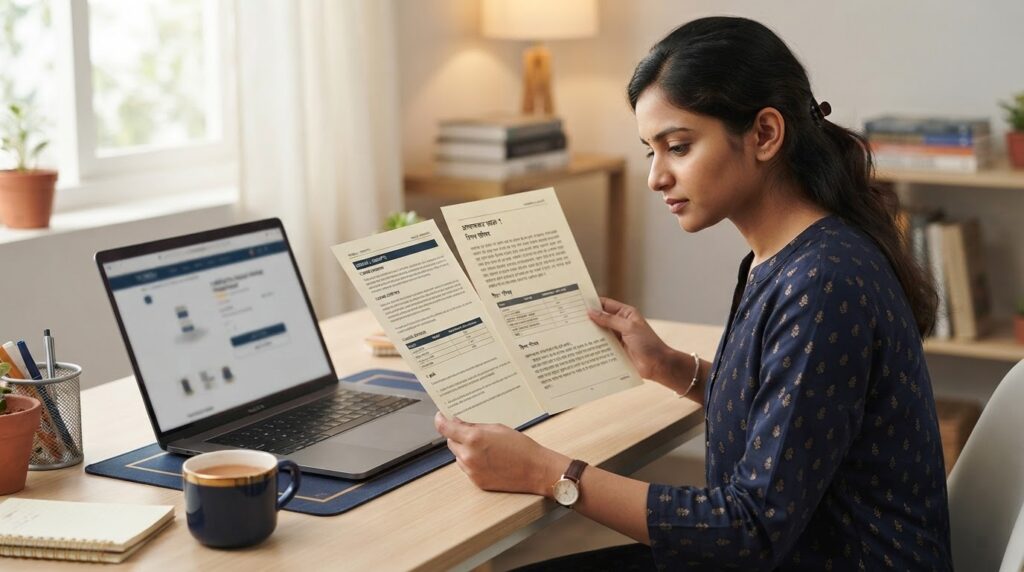
A scanned assignment can be rejected or become difficult to evaluate when pages are blurred, incomplete, tilted or uploaded against the wrong subject. Before you upload a YCMOU home assignment PDF, check the document from the first page to the last and compare it with your own programme instructions.
Why scan quality matters
YCMOU’s official M.A. Sociology M86 prospectus for academic year June 2026–27 gives specific instructions: create a PDF for each course using the page numbers in sequence, ensure the scan is clear and readable, and avoid overwritten, crooked, slanted or folded pages. It also says uploaded pages that cannot be read, belong to the wrong subject, are crooked/slanted/bent or are blank will not be evaluated and may be rejected; students can view rejection information in their profile.
Important: These are M86 programme instructions. Do not apply its exact file-size or page requirements to another programme unless that programme’s own prospectus says the same. Read the official M86 Sociology Prospectus 2026–27 for the full rule.
Step 1: Match the assignment before scanning
- Confirm the programme and semester shown in your student record.
- Read the exact subject/course code on the official question paper.
- Make sure the written answers belong to that paper, not a similar subject or an older session.
- Check whether your programme requires a specific cover sheet, barcode page, signature, page numbering or other format.
For M86 Sociology, the prospectus says students should use the blank pages with barcodes shown in their own portal login and write answers in their own handwriting on those pages. It warns that using another student’s login pages or unrelated pages can result in rejection because the barcode is profile-specific.
Step 2: Prepare the pages for scanning
- Place each sheet on a flat surface with good light.
- Keep the camera directly above the page to reduce perspective distortion.
- Check that all four edges are visible and no answer is cut off.
- Keep the page in the correct order before creating the PDF.
- Review every page after scanning; do not assume the app captured it properly.
Step 3: Review the PDF before upload
- Legibility: Zoom in and make sure handwriting and diagrams can be read.
- Page order: Confirm pages follow the correct sequence and no page is missing.
- Orientation: Rotate sideways pages so they can be read normally.
- Completeness: Open the PDF and move from the first page to the final page.
- Subject match: Confirm that the file corresponds to the course selected on the portal.
- Portal rules: Check the current upload screen for file type, size, naming and any other requirements. The M86 prospectus specifies a 3 MB minimum per page and a 20 MB total limit for that programme; do not assume those numbers apply to other programmes.
Step 4: Upload and keep proof
Open the official YCMOU ASM Home Assignment Portal through the university’s Examination Information page. Select the relevant course and follow the live instructions. After submitting, save any acknowledgement or status shown by the portal.
For the broader assignment workflow, read our ASM portal login and upload guide and YCMOU assignment download and submission guide.
Common PDF mistakes to avoid
- Uploading a paper for the wrong subject code.
- Leaving one or more pages out of the scan.
- Using a photo that is too dark, blurred or cut off.
- Submitting pages in a confusing order.
- Ignoring the course-specific cover page or barcode instructions, where required.
- Assuming that a successful upload automatically means the assignment has been evaluated or approved.
Optional course-specific study reference
If SOC517 is the exact course code on your own assignment paper, you can review this separate YCMOU MART solved-answer reference for answer-structure guidance. It is not an official university paper and does not replace the requirement to prepare your own work according to YCMOU instructions.
View SOC517 YCMOU Assignment Answers
Frequently asked questions
Is the same PDF format used by every YCMOU programme?
Do not assume so. Check the instructions for your programme, academic year and subject. File type, naming and page requirements can be programme-specific.
Can I upload a dark or tilted scan?
Re-scan it if the writing is difficult to read or the page is significantly tilted. The M86 prospectus says unreadable, crooked, slanted, bent or blank pages will not be evaluated and may be rejected.
Does an uploaded file mean my assignment is approved?
Not necessarily. Upload confirmation and evaluation/approval are separate steps. Check the portal status and any instructions from your LSC.
Where can I find the official assignment question paper?
Use the YCMOU Home Assignment page and filter by School, Program Level, Program and Year/Sem.
Conclusion
Before submitting a YCMOU assignment PDF, check the course code, page order, scan clarity and every programme-specific requirement. Open the file once more before uploading, then save the portal acknowledgement. A careful final check can prevent avoidable document problems.